
Save a Word document as a PDF
Turn a Word document into a PDF you can sign, send or keep.
Before you start: A Word document (.docx or .doc) in your files, and an active subscription.
1. Open the document
Open the Word document in the editor, or find it in My files. In the list you can also choose Convert to PDF in its three-dot menu.
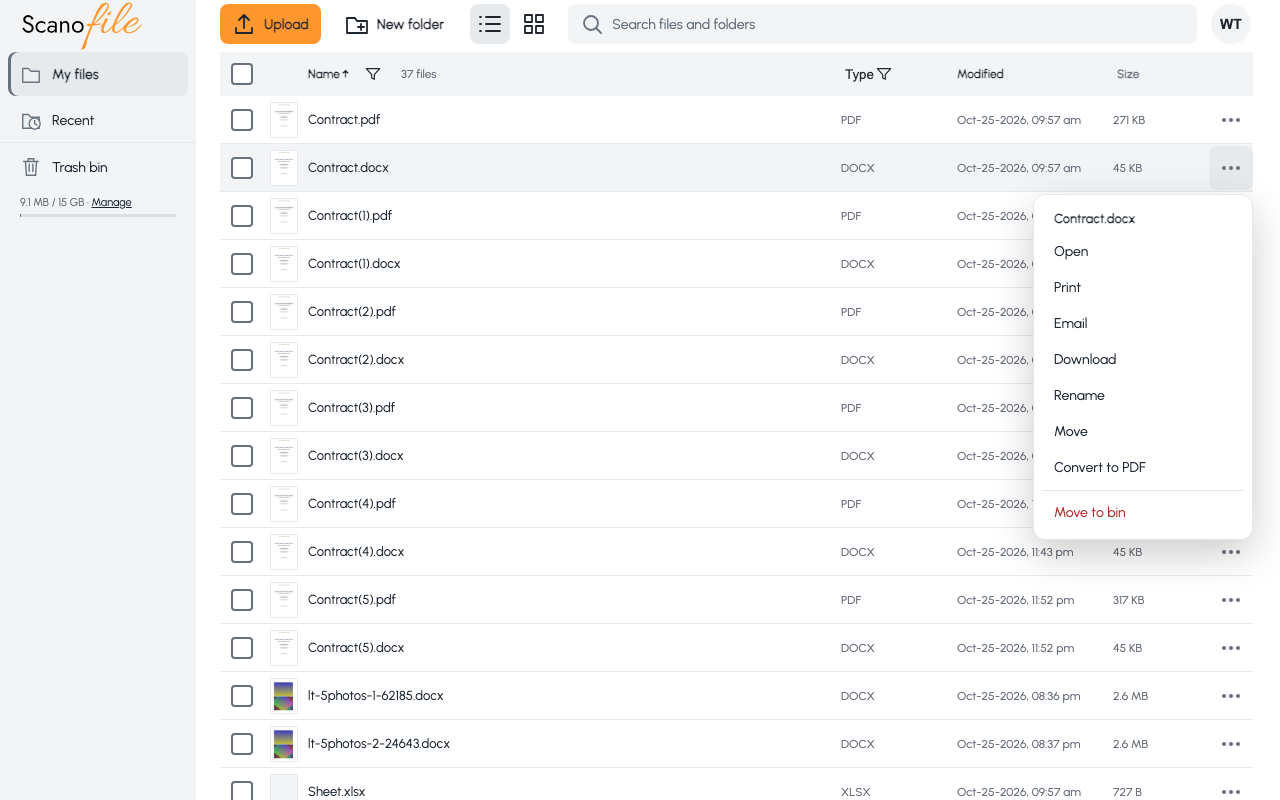
2. Choose Convert to PDF
In the editor choose Convert to PDF at the top. Your latest changes are saved first, then the window shows Converting to PDF….
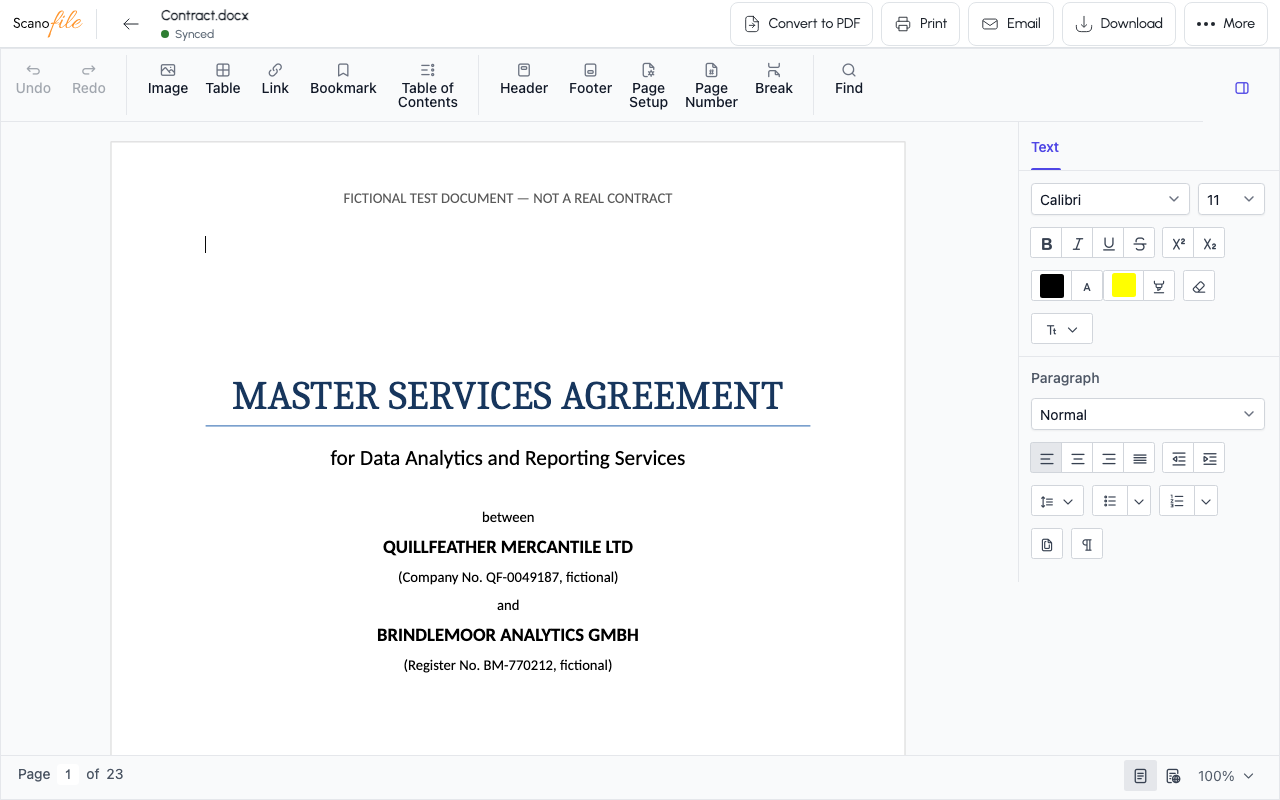
3. Open the result
When it says PDF created, choose Open PDF, or Stay in editor to keep editing. The PDF is a new file in the same folder; the Word document stays as it was.